
Ultimate Guide for Speeding Up your Windows 7
Useful tips, tools and tweaks to boost the performance of Windows 7
Windows 7 is, still, a great operating system that runs on a budget.
Every version of Windows has many services enabled, while many optimizing tweaks are not enabled by default. The reason this is so is that the installation is designed to support a very generic set of devices and hardware. The cool part of using Windows is the ability to fine tune it to your needs. Some call this tuning process “Hacking”, others called it “Tweaking”. I’m not really that worried about the name, instead I prefer focusing on the content…
Before I get all technical, you must check your hardware and choose the edition of Windows 7 that best suits your system:
Choose Windows 7 32-bit if you have:
- 3GB or less system memory
- Dual core or single core processor
- Built in graphic card
- 250GB or less hard drive
Choose Windows 7 64-bit if you have:
- 4GB or more system memory
- i7, Dual core or Quad Core processor
- Dedicated PCI express graphic cards such as Nvidia or AMD
- 250GB or larger hard drive
Now that that’s out of the way – on we go to the good stuff…
1.0 Disable Unwanted Services
Windows 7 enables services that aren’t necessarily required by default. You can relieve a huge amount of system resources by disabling these services or setting them to “Manual mode”. Configuring a service to this setting means, it doesn’t start automatically, but rather only when it is required.
How to Disable services:
- Access the “Start Menu“
- Type in “services.msc” in the search line and press “Enter“. (Alternately you can open the “Control Panel“, locate the “Administrative Tools” icon and click on “Services“.)
- Go to a service property page to set it to Automatic/Manual or Disabled. Right click on the service name and choose “Properties” to access the properties screen.
Use the screenshot below as a reference: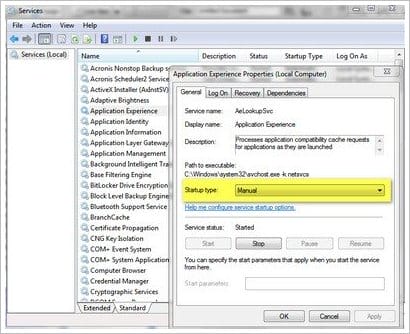
Safe Services Configuration
The configuration listed below lists a range of services you can disable to relieve system resources and yet it should provide a great experience for 95% of users. There should be little or no side effects to configuring your machine this way.
What you can disable:
- Application Experience
- Computer Browser (Disable this if you’re not joining any network)
- Desktop Window Manager Session Manager (Disable this if you don’t want the aero effects)
- Diagnostic Policy Service
- Distributed Link Tracking Client
- IP Helper
- Offline Files
- Portable Device Enumerator Service
- Print Spooler (Disable this if you do not have a printer)
- Protected Storage
- Remote Registry (Disable it for more Security)
- Secondary Logon
- Security Center
- Server (Disable if you’re not running on any network or intranet)
- Tablet PC Input Service
- TCP/IP NetBIOS Helper
- Themes (Disable if you do not want aero and good visual appearance
- Windows Error Reporting Service
- Windows Media Center Service Launcher
- Windows Search (Disable it if you hardly use Windows Search feature)
- Windows Time (Disable this if you are not synchronizing system time with Internet time automatically)
Alternative method:
Another method for getting this done is by using the Game Booster freeware. It allows you to enable and disable using a single click.
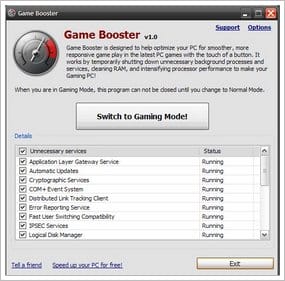
~
2.0 Disable Unwanted Start-up Applications
Certain application put start up items on the Windows registry and start-up folder every time you install them. These programs are eventually hidden and they get started every time you start Windows. It’s not a bad idea to remove some of these because they aren’t really required to load during your boot-up. Disabling these applications decreases Windows’ desktop loading time.
Using MSCONFIG:
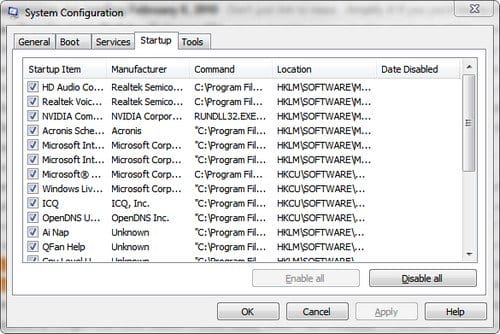
- Go to start menu and in the search box type ” MSCONFIG”, press Enter. The Windows system configuration tool will open. It might ask you for Administrator password before continue.
- Click on the 4th tab “Startup“, review each of the applications, decide which one to start at boot time and which one not needed to be started.
- Click on the Check Boxes to enable to disable any startup application
- Press Apply, MSCONFIG might ask you to pre-boot your computer.
Using a freeware Windows 7 customization tool EnhanceMySeven:
- Get the freeware EnhanceMySeven
- Install and open the application, Click on the “Startup items”Icon.
- It will list all the programs set to run on Windows start up. Use the check boxes on the right to Enable or Disable any programs.
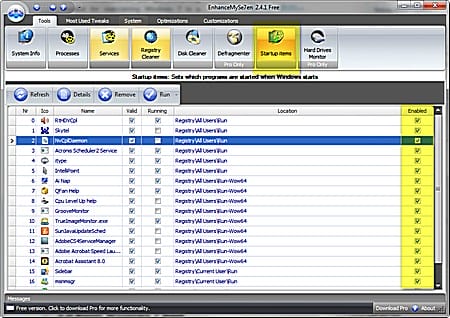
- EnhanceMySeven provides much more functionality than just managing startup programs, but use it with caution.
3.0 Boost Windows 7 Boot
Using MSCONFIG:
- Go to the “Start Menu“, type “MSCONFIG ” in the search box and press Enter. The Windows system configuration tool will start. It might ask you for Administrator password before continue.
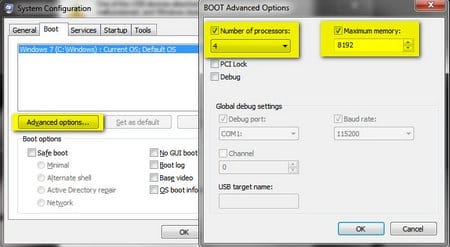
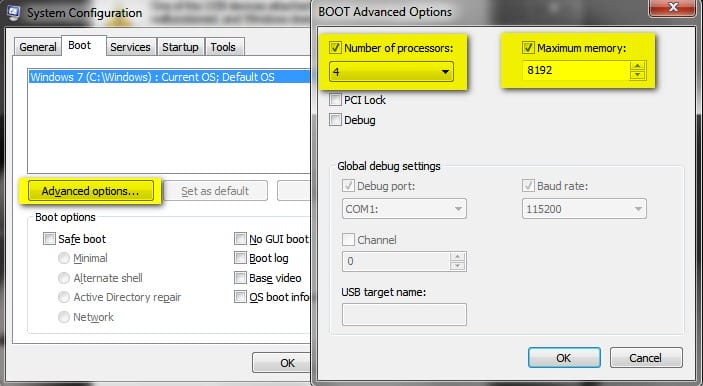
- Click the “Boot” (2nd) tab
- Click “Advanced Options” button
- Select the number of processors you have and the amount of memory available. For example, if you’re using a Dual Core processor then you should select “2” from processors drop down menu, if you have a Quad Core processor, you should select “4” from the processor drop down menu, etc.
- Now Press “Ok“, then “Apply“, MSCONFIG might ask you to re-boot your computer.
4.0 Disable Visual Effects and Windows Aero
Windows 7 comes with a wide range of visual effects which actually require a lot of system resources. If you prefer a fast and responsive machine you might want to free up the resources used by these visual effects.
- Right click on “Computer” and choose “Properties“.
- Click on “Advanced System Settings” from the left pane to open up the “System Properties” window.
- Select the “Advanced” tab.
- Under “Performance” click “Settings“.
- Choose “Custom Options“.
- Uncheck all the options except the last 4 in the list.
- Apply and reboot the system to bring the changes into effect.
You will notice the significant difference in speed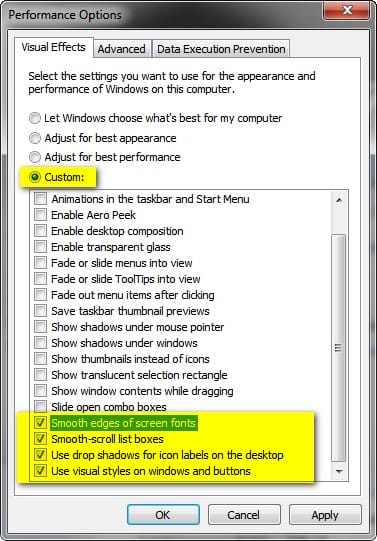
5.0 Disable Search Indexing
Windows 7 comes with a search indexing feature but I’ve noticed I never actually use it. It takes up quite an amount of Windows system resources. Here’s how to disable it:
- Right-click the “Computer” icon in the desktop and select “Manage”.
- Click “Services and Applications” in the “Computer Management” window.
- Click on “Services”.
- Look for “Windows Search” in the list that appears.
- Right-click the service and select “Properties“
- Change the start-up type option to “Disabled” from the drop-down menu.
6.0 Disable the UAC feature
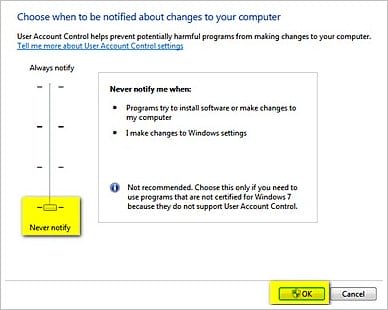
Although this feature is meant for security it can be a real nuisance sometimes. Here’s how to disable the User Account Control (UAC) Feature in Windows 7:
- From the Control Panel open the “User Accounts and Family Safety > User Account“.
- Click the “User Account Control” settings link.
- Drag the Slider towards “Never Notify”.
- Click “OK” and Re-boot.
7.0 Choose High-Performance Power Plan
The Power settings in Windows 7 are set for balanced power consumption by the hardware. “Balanced” is not the same as “Optimal”…
- Double click the “Power Options” in the control panel.
- Click the down arrow showing “Show Additional Plans” to show the “High Performance” power plan
- Select the “High Performance” plan.

8.0 Enable and Use Hibernate or Sleep Mode
When entering Hibernation your computer writes the contents of your system memory to a permanent storage medium (nearly always a hard drive). This allows the computer to power-off yet retain the current usage state. Once the computer is turned back on the memory is refreshed with the hibernation data allowing you to resume working from the past session. Documents, applications and the desktop state are presented as they were when you entered Hibernation.
The feature is primarily designed for laptop users because it’s a very handy power-saving feature that extends battery life when your computer is idle. However, desktop users may also find this mode handy as it allows you to save power and resume your session very quickly.
Hibernation might not be activated by default on some computers, so you’ll need to manually enable it:
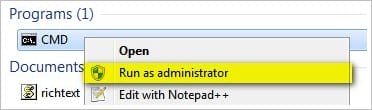
- Go to Start Menu, Type “CMD” in the search box
- Right click on CMD, Select “Run As Administrator”
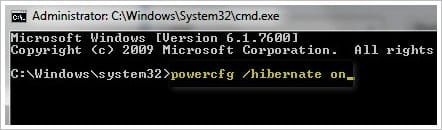
- At the Command console, type ” powercfg /hibernate on”
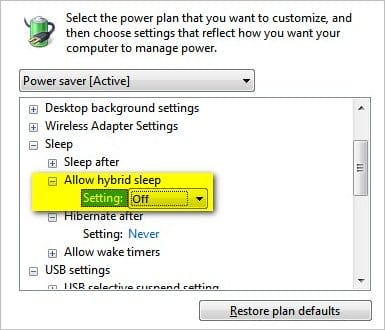
- Go to Control Panel > Hardware and Sound > Power Options and click ” Change Plan Settings” on your currently selected plan.
- Click ” Advanced Power Settings“.
- Scroll down to “Allow Hybrid Sleep” and select “Off“
- Click OK
- You should now see the Hibernate option in your Shut down menu.
9.0 Optimize your Anti-Virus settings
Antivirus and Anti-Malware software can contribute to performance slowdowns. So much so that some users decide to go without real-time security software (not recommended for most users!).
A good way to achieve a sensible balance between protection and speed is to use an efficient antivirus package that has a low resource footprint.
Most Anti-virus software comes configured for real-time scanning. Here are some tips to customize it for performance:
- Select scan by executable extentions
- Set no real-time scan for archives and big files.
- Set the Heuristic scan mode to low level
- Set the scan mode to “active” only when open any executable
These tips should be able to apply on almost any well known Anti-virus packages.
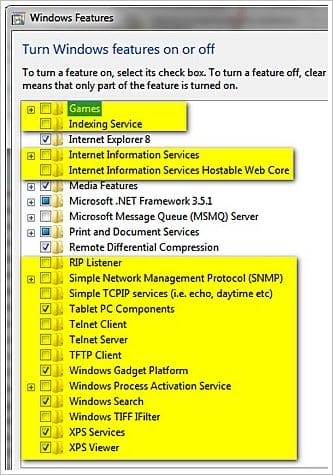
10.0 Turn off Unused Windows Features
There are many features in Windows 7 that most of us don’t use very often. Disabling them will really help in speeding things up:
- Open “Programs and Features” from the Control Panel.
- Click “Turn Windows features on or off” from the left pane.
- Uncheck all the features you don’t use in Windows 7.
- Restart the system for the changes to take effect.
11.0 Use the Tweak Power Tools
Many tweaks and power tools already support Windows 7. Here are the best of them:
7Stacks
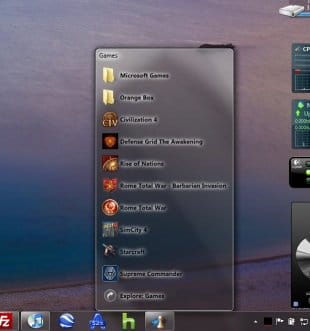
7stacks is an easy to use free app that lets Windows 7 (and Vista and XP) users have “stacks” of icons in their Taskbar (Win 7) or QuickLaunch Toolbar (Vista & XP). By using stacks, users can reduce icon clutter, and combine a group of related icons into a single icon.
For instance, if you use application suites such as Microsoft Office, OpenOffice, or Adobe CS4, you can have all the suite’s icons combined into one icon!
You can also use it to browse and access documents within a folder very quickly. Usually when you want to edit a series of frequently used documents you’d have to either launch the app, and go to File|Open, or open the (My) Computer icon and go into your (My) Documents folder and pick the file you want. With 7stacks you just create a stack to the document’s folder and open it with a couple of clicks.
~
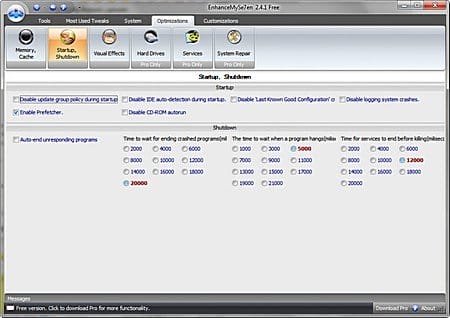
Make your Windows 7 faster and even more responsive with EnhanceMySe7en
This program offers tools that take care of the registry, disk space and defragmentation, installed software, HDD temperature and other things related to system’s health.
The clean and easy interface grants you access to a comprehensive set of powerful and well classified tools, settings and tweaks.
~
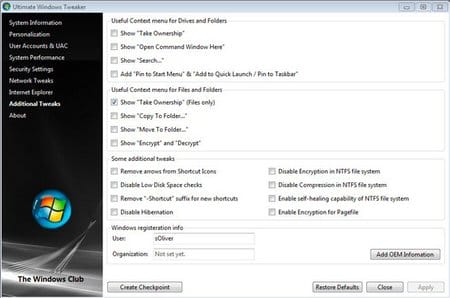
The Ultimate Windows Tweaker offers some basic tweaking tools. For example in enables you to add more options to your context menu, or to customize Windows Explorer. It’s a simple tool, but can come in very handy at times.
~
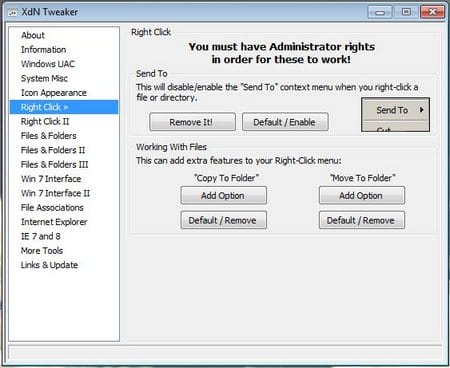
A simple tool – if you want to customize a few settings only this is a good choice. Enables you to customize your explorer context menus too.
~
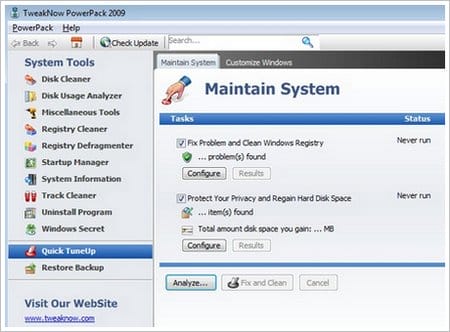
TweakNow PowerPack is a fully-integrated suite of utilities that lets you fine-tune every aspect of your computer’s operating system and Web browser.
The Registry Cleaner module provides you with a safe and simple way to clean your Windows Registry.
To keep your computer at top performance we recommend you clean your registry at least once a month.
For tweak lovers the suite’s Windows Secret section provides access to over 100 hidden Windows settings. Using modules included in this section you can easily customize your Windows like a bona-fide geek.
The Virtual Desktop module lets you run as many as four custom-designed desktop configurations simultaneously allowing you to tailor your computer screen to your mood and your work requirements.
Last but not least the suite also gives you a complete picture of all the aspects of your computer’s hardware, including detailed information about your motherboard, processor, video card, memory, hard disk and network.
~
That’s all for now!
This is quite a long post but I think it just about sums up every tips, tools and tweaks you’ll ever need to enhance the performance of your Windows 7.
Heavy gamers might find other more tailored lists out there but my intention was addressing the needs of most average users. You are welcome to share any further tips and tweaks you’re familiar with and let me know what else I could add here to make this list even better.
Have fun tweaking but always remember to backup before making any crucial changes to your system.


