
Terms
Terms are the values PlaceScale inserts into your templates.
Open PlaceScale → Terms to manage them.
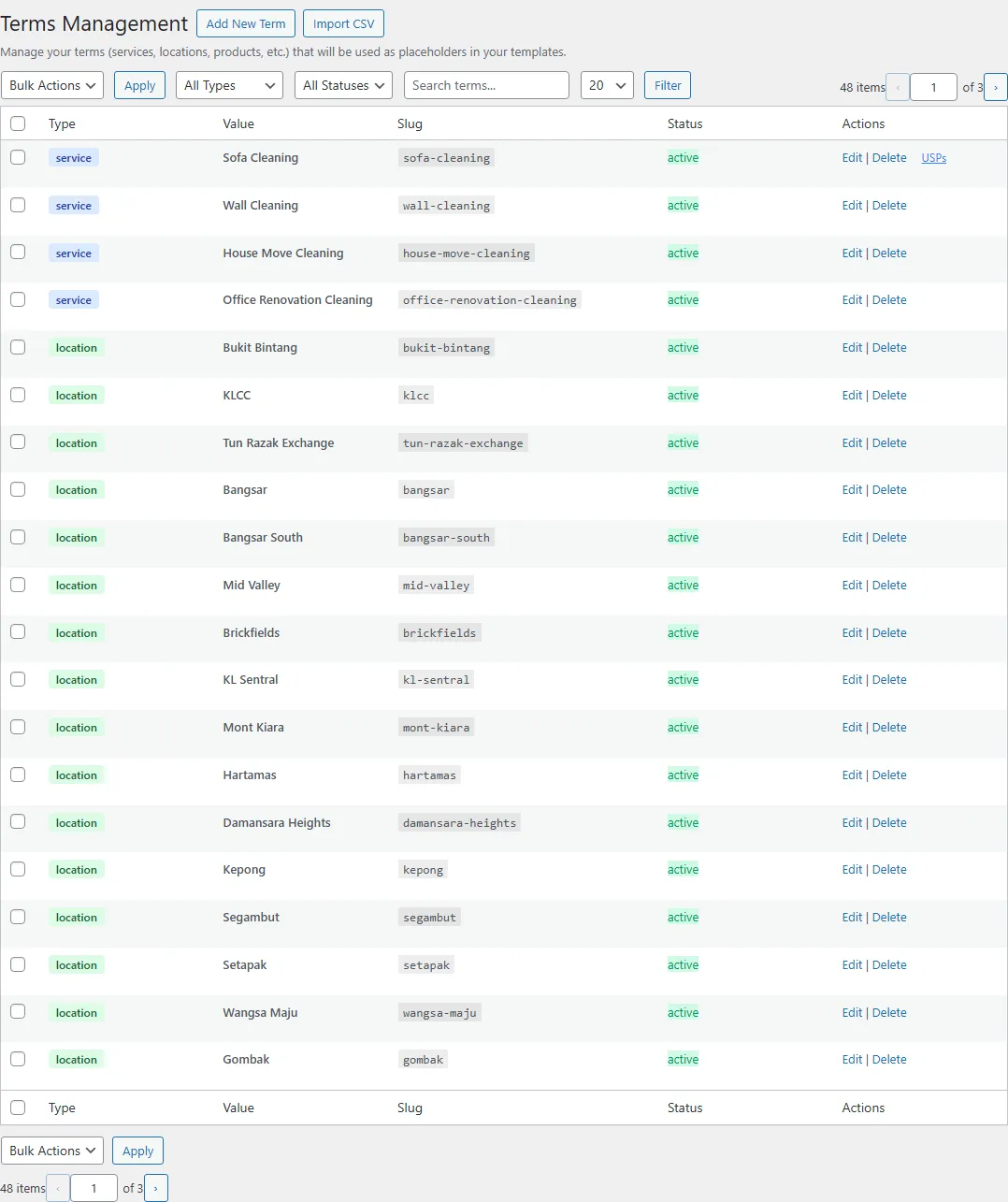
What a term contains
Section titled “What a term contains”Each term has:
- Type (example:
service,location) - visually color-coded in the list - Value (singular label)
- Slug (optional)
- Status: Active / Inactive
- USPs (Unique Selling Points) - up to 3 benefits for AI content generation
- Custom Fields (optional)
Term type color-coding
Section titled “Term type color-coding”The terms list uses color-coded badges to distinguish term types at a glance:
| Type | Color | Style |
|---|---|---|
| service | Blue | Blue background (#dbeafe) with dark blue text (#1e40af) |
| location | Green | Green background (#dcfce7) with dark green text (#166534) |
| Other types | Default | Standard styling |
Add a term
Section titled “Add a term”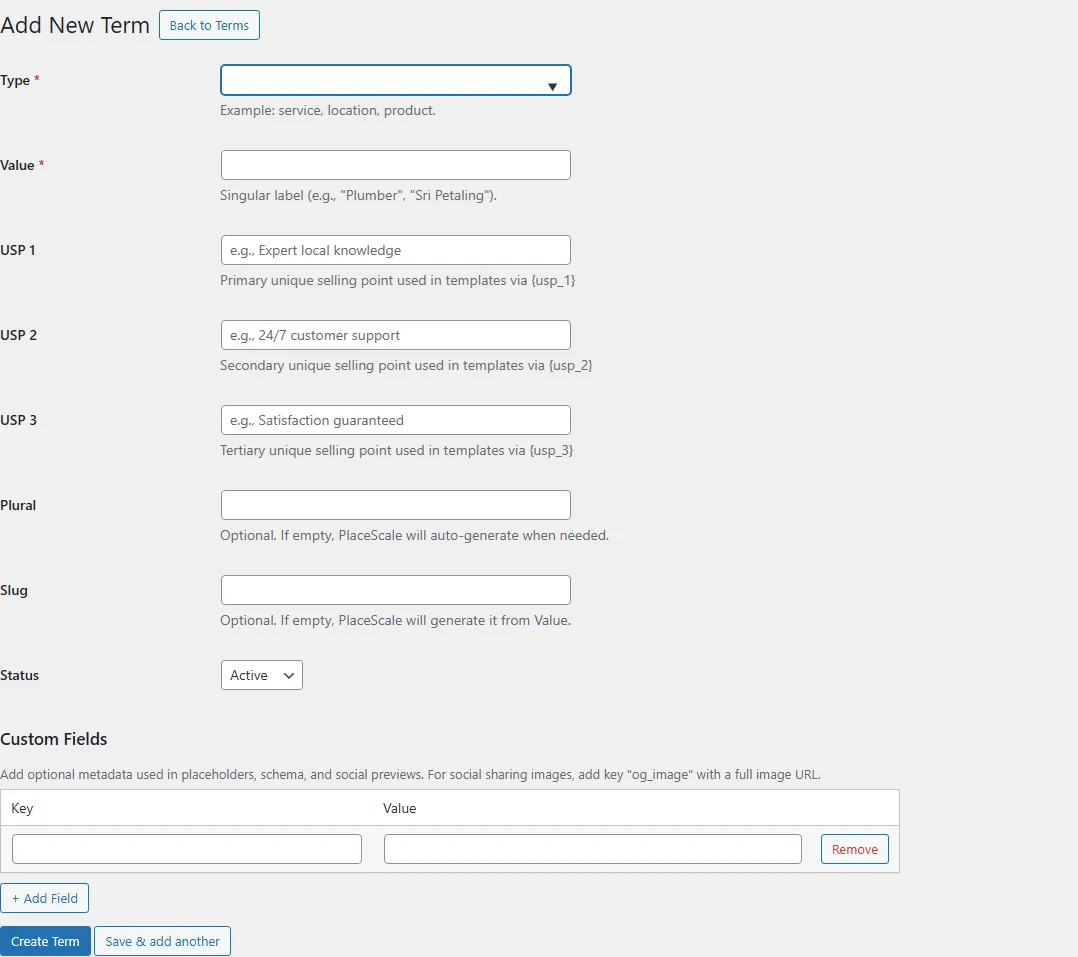
- Go to PlaceScale → Terms.
- Click Add New Term.
- Fill in the fields.
- Save.
USP Fields (Unique Selling Points)
Section titled “USP Fields (Unique Selling Points)”Each term can have up to 3 USPs that power AI-generated content:
- USP 1 / Location USP 1 / Service USP 1 - Primary benefit
- USP 2 / Location USP 2 / Service USP 2 - Secondary benefit
- USP 3 / Location USP 3 / Service USP 3 - Tertiary benefit
The field labels are context-aware based on term type:
- For location terms: “Location USP 1/2/3” with placeholder
{usp_1l} - For service terms: “Service USP 1/2/3” with placeholder
{usp_1} - For other types: Generic “USP 1/2/3”
Example values:
- Service USP: “Expert local knowledge”, “24/7 customer support”, “Satisfaction guaranteed”
- Location USP: “Serving Austin since 2010”, “Same-day bookings available”, “Locally owned & operated”
These USPs are used in AI Slots via placeholders like {usp_1}, {usp_2}, {usp_3} for services and {usp_1l}, {usp_2l}, {usp_3l} for locations.
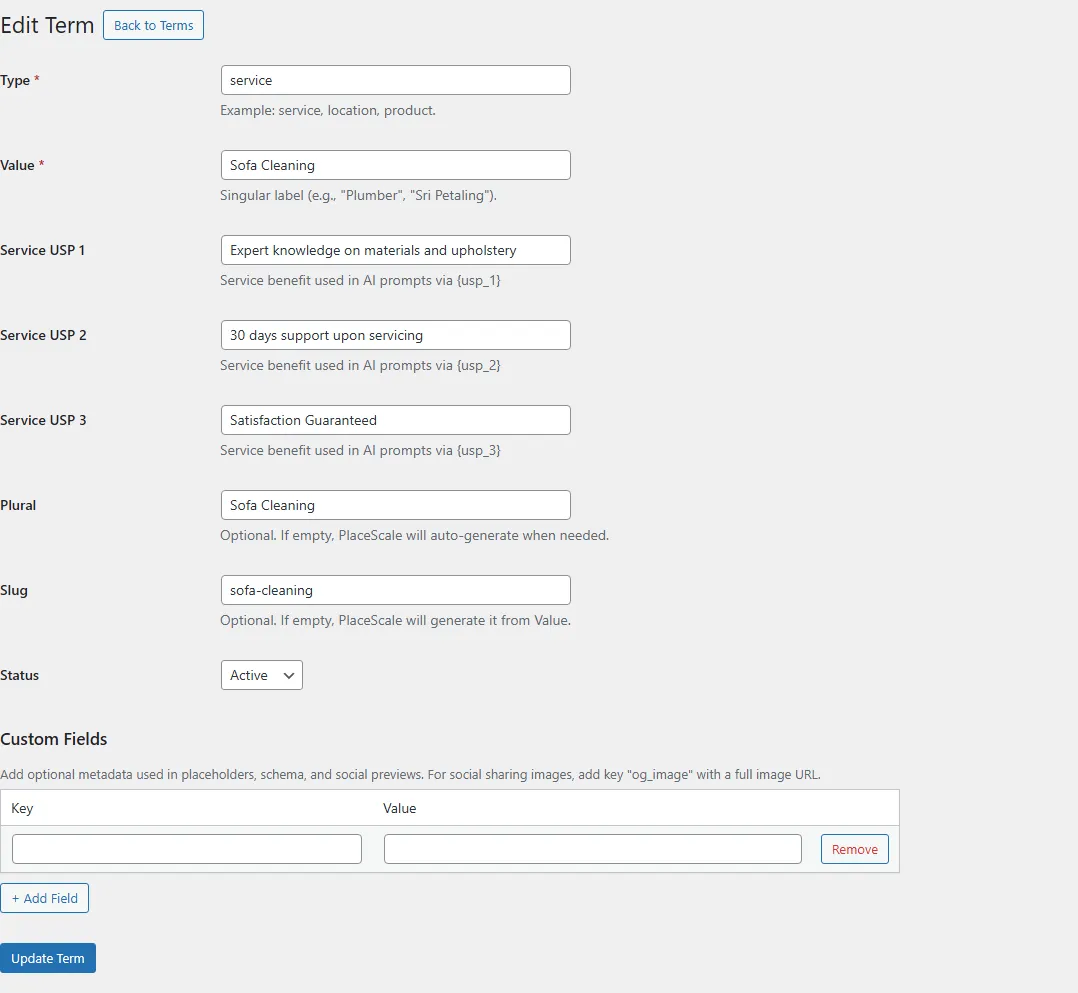
Custom Fields
Section titled “Custom Fields”Custom Fields store metadata you can reuse in templates.
Common examples:
phoneemailhoursaddressog_image(social share image URL)
Filters and bulk actions
Section titled “Filters and bulk actions”On the Terms screen you can:
- filter by Type and Status
- search terms
- set items per page
- use Bulk Actions:
- Delete
- Activate
- Deactivate
The terms table shows: Type (color-coded), Value, Slug, Status, and Actions.
USP Preview Tooltip
Section titled “USP Preview Tooltip”When viewing the terms list, terms with USPs display a “USPs” link in the Actions column. Hover to see a tooltip showing:
- The USP label (Service USPs or Location USPs based on term type)
- Each USP value with its corresponding placeholder
[[SCREENSHOT: Terms list with USP tooltip visible on hover showing placeholder values]]
CSV Import
Section titled “CSV Import”On the Terms screen, click Import CSV.
Required columns:
typevalue
Recommended:
slug
Optional metadata columns:
meta_usp_1,meta_usp_2,meta_usp_3- USP values for AI content- any column starting with
meta_becomes a Custom Field
Example:
type,value,slug,meta_usp_1,meta_usp_2,meta_usp_3service,Office Renovation Cleaning,office-renovation-cleaning,Expert local knowledge,24/7 support,Satisfaction guaranteedlocation,Sri Petaling,sri-petaling,Serving since 2010,Same-day bookings,Locally ownedTroubleshooting
Section titled “Troubleshooting”- If URLs 404 after changing slugs, flush permalinks or use Tools → Flush rewrite rules.
- If placeholders don’t replace, confirm your term type matches the placeholder you used.
- If USPs don’t appear in AI-generated content, verify the term has USP values set and the AI Slot prompt uses the correct placeholder format.
Related: