
Templates
Open PlaceScale → Templates.
Templates define what each generated page will look like.
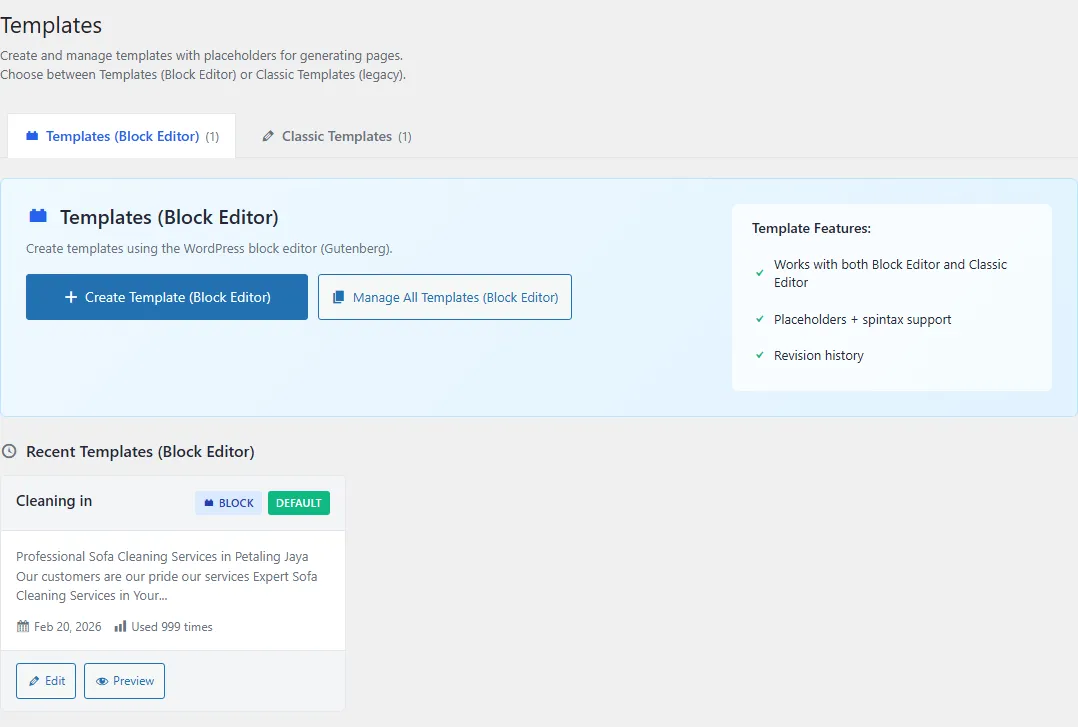
Template types
Section titled “Template types”Templates (Block Editor)
Section titled “Templates (Block Editor)”
- Edited in the WordPress editor
- Recommended for most sites
You can also open the full list in:
- PlaceScale → Templates → Manage All Templates
Classic Templates
Section titled “Classic Templates”- Stored in the database
- Edited inside PlaceScale
What to put in a template
Section titled “What to put in a template”Placeholders
Section titled “Placeholders”Use placeholders like:
{service},{Service}{location},{Location}
If your terms have Custom Fields, you can also use keys like:
{phone},{hours}
Spintax
Section titled “Spintax”Use spintax for small variations:
{{Fast|Affordable|Trusted}}
AI Slots
Section titled “AI Slots”If you want AI-written copy inside an otherwise fixed layout, insert an AI Slot block.
Internal links
Section titled “Internal links”Add this token where you want internal links to appear:
{{pscale:links}}
Then configure linking in settings.
See: Internal linking
Prompt templates (AI)
Section titled “Prompt templates (AI)”If you use AI prompt templates:
- use placeholders so prompts are specific to the page
- avoid relying on “sample prompts” unless your template includes placeholders
PlaceScale ignores sample prompts when a template has no placeholders (to prevent irrelevant or accidental prompts).
Template defaults
Section titled “Template defaults”You can mark a template as Default.
Bulk Generate can preselect the default template.
Safe workflow
Section titled “Safe workflow”- Create a template.
- Go to Bulk Generate.
- Click Preview.
- Generate pages as drafts.
Related: